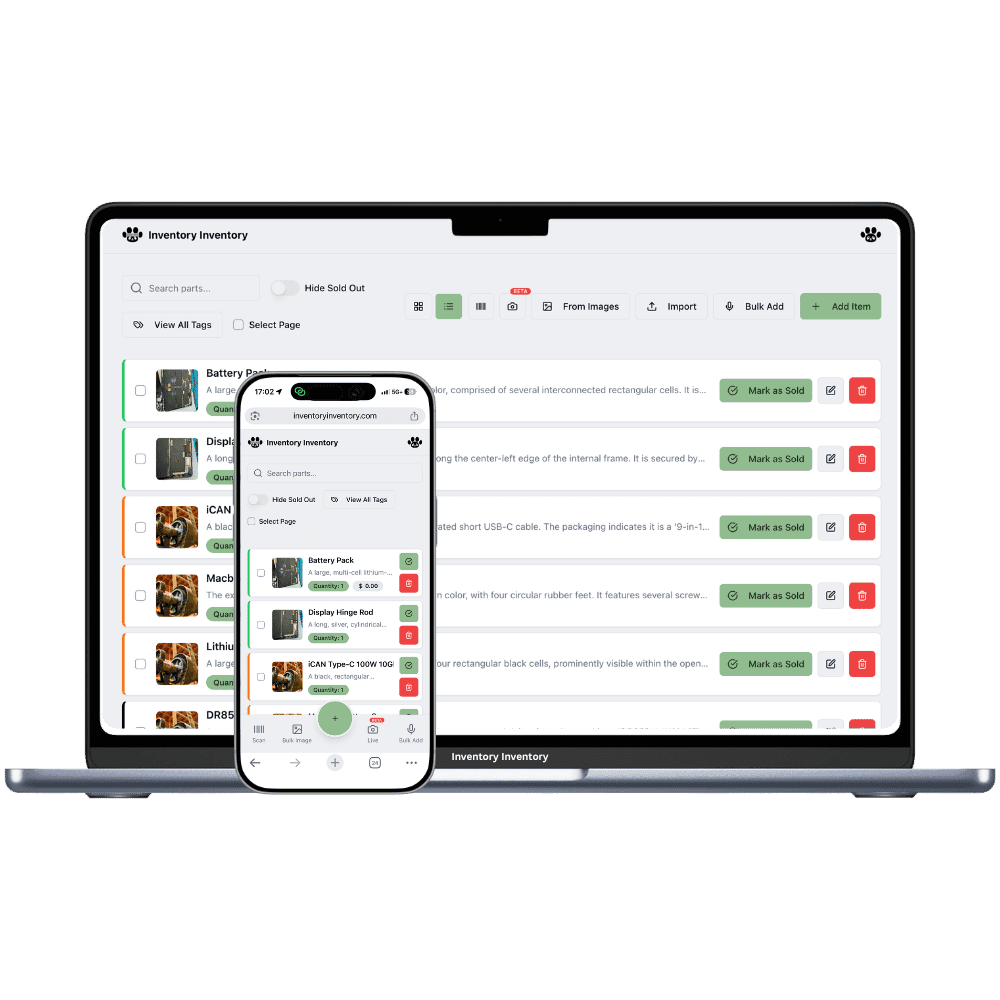
Online sellers and small fulfilment warehouses that count every shelf
Every order is a box to find, pick, pack and hand to a carrier. Inventory Inventory keeps the shelves counted and, on VIP and above, walks each order from reserved to shipped.
What online sellers and small fulfilment warehouses stock
Small-batch skincare in two sizes
Phone cases and charging cables
Supplements and snacks with best-before dates
Enamel pins, stickers and patches
Handmade candles and soaps
Pet accessories and small homeware
Mailer boxes, poly bags and packing tape
How online sellers and small fulfilment warehouses keep count
An online seller or small fulfilment warehouse counts stock that customers never see. Orders arrive all day, a pick list goes to whoever is on the floor, and every box has to leave before the carrier’s pickup. The count that matters is available, not on hand: twenty jars on the shelf mean little if eighteen are already promised to orders nobody has picked. A mis-pick costs a reshipment, a lost box costs a customer, and dated stock such as supplements has to leave soonest expiry first, or it ends up expiring on the shelf.
Inventory Inventory maps the warehouse in Warehouse Mode, on every plan, with aisles and floors that match your shelving. On VIP and above, Orders turn each sale into a sales order: Confirm reserves the stock so available equals on hand minus reserved, the pick list sorts lines by warehouse, aisle and floor, Pack and label prints a Code 128 order label on a 4 × 2 inch page, and handing the box to the carrier deducts stock and records which lots left. On VIP and above, orders can also arrive through the REST API or an AI connector.
Where the counts go wrong
Stock that is already promised
On hand is not the same as available. With Orders on VIP and above, confirming an order reserves its stock, the item shows a +N reserved for orders badge, and available equals on hand minus reserved. A line that cannot be filled records its shortfall instead of quietly overselling.
Pickers walking back and forth
On VIP and above, each order’s pick list is sorted by warehouse, aisle and floor, so a picker walks the shelves once. Each line records who picked it and when. Picking runs in the web app in a phone browser; the phone apps do not pick for the time being.
The wrong box handed to the carrier
On VIP and above, Pack and label prints a Code 128 order label on a 4 × 2 inch page. At the door, scan the carrier’s label and then the order code, and the order is Ready for carrier. Handing it over deducts the stock, soonest expiry first for dated goods, and records each lot shipped.
A weekday of orders in Laval
By 9 am the owner of an online shop in Laval, on the VIP plan, has twenty-six orders created overnight through the API and confirmed, each reserving its stock. A packer opens the pick lists in a phone browser and walks aisle 1 to aisle 6 in order, recording each line. Two lines for a serum show a shortfall, so those orders wait until the owner orders more serum and it is received. At the packing bench each box gets its Code 128 order label; the packer scans the carrier label, then the order code, and the order moves to Ready for carrier, its box in the Ready Orders Room in 3D. At 2:45 pm the Canada Post pickup arrives, and the handover deducts stock, soonest expiry first.
How it works
1
Map the shelves and bring in stock
Draw the warehouse with its aisles and floors, import your product list on Pro and above, and place each item on its shelf. Turn on Expiry date or Lot number for dated goods so they leave soonest expiry first.
2
Turn sales into orders
On VIP and above, create sales orders by hand, through the REST API, through an AI connector or with the AI Assistant, and confirm them to reserve stock. Square sales, on Pro and above, deduct directly instead.
3
Pick, pack, label and hand over
Work through the pick list in aisle order, print the 4 × 2 inch order label, scan the carrier label and the order code, and hand over to Purolator, Canada Post, UPS, FedEx, USPS, DHL or a customer pickup. The handover deducts the stock.
Frequently asked questions
Can I print shipping labels?
Not carrier shipping labels. On VIP and above, Inventory Inventory prints its own Code 128 order label on a 4 × 2 inch page, and you scan the carrier’s label and then the order code to tie the two together. Buy the shipping label from your carrier as usual; rate shopping, packing slips and customer shipment emails are not included for the time being.
How do orders from my web shop get in?
If your shop runs on Square, completed orders, online and in store, deduct stock here within seconds on Pro and above. Otherwise the REST API on VIP and above can create sales orders that reserve stock and run through picking and the handover. Outgoing order webhooks are not available yet.
Does it track orders in transit and delivered?
Not on its own yet. The eight-station rail runs from Received to Delivered, and the last two, In transit and Delivered, wait for a carrier connection for the time being. Each shipped order keeps its carrier and a tracking link for Purolator, Canada Post, UPS, FedEx, USPS or DHL.
Is there a free plan?
Yes. The Free plan holds up to 50 items with barcode scanning and custom item fields, and it needs no credit card. Upgrade only when you outgrow it.
Does it work on phones?
Yes. There are apps for iPhone and Android that turn your phone into a barcode scanner and show your live stock on the floor. Create your account on the web first, then sign in to the app with the same account.
Can I import my existing list?
Yes, on Pro and above: upload an Excel or CSV file and your columns are mapped automatically: name, quantity, price, barcode, SKU, cost, supplier, category, reorder level, expiry date and lot number. You review everything before it is saved.