
Your data is safe
Completed saves are stored on our servers. The error only affects what the browser shows.
The "Application error: a client-side exception has occurred" screen means your browser could not load part of the page. Your data is safe, and a reload usually fixes it.
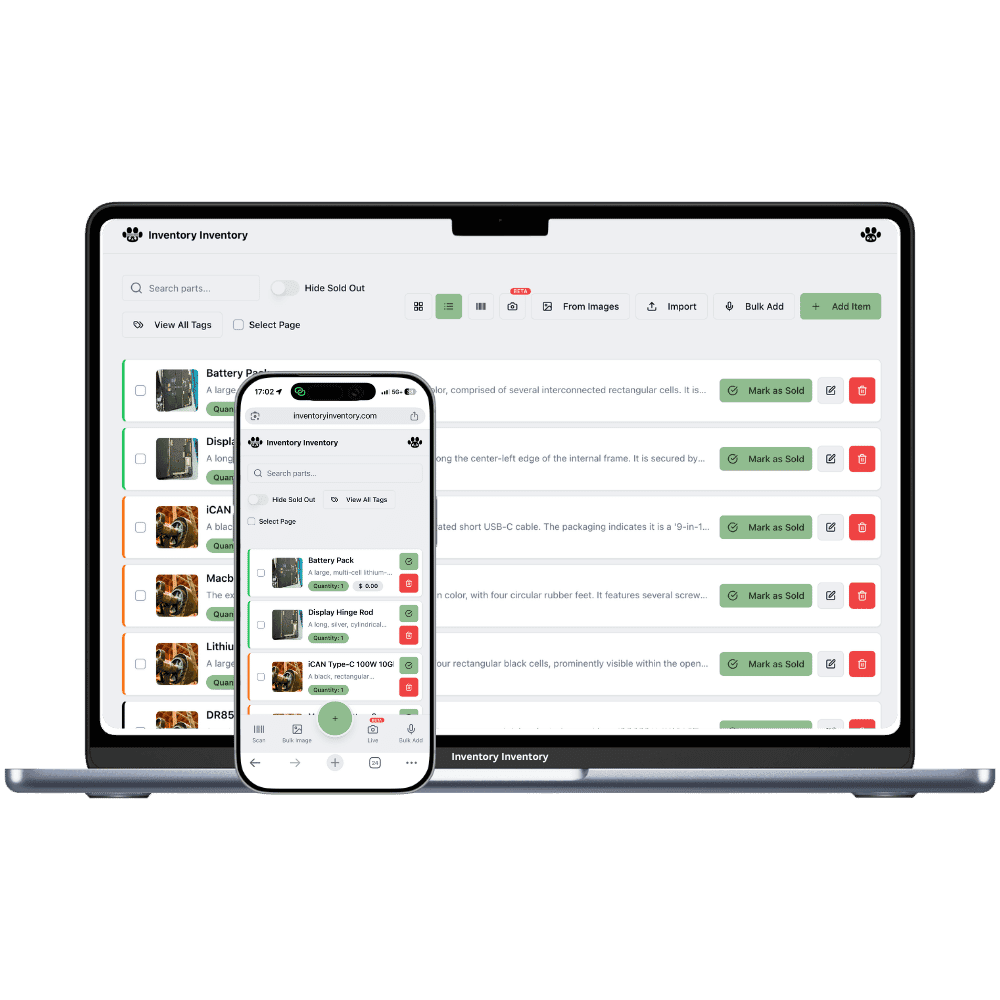
Inventory Inventory loads its code in parts as you move around the app. The "Application error: a client-side exception has occurred" screen appears when the browser starts loading one of those parts and cannot finish. It is a loading problem in the browser, not a problem with your account or your data.
There are three usual causes. A connection that drops or is throttled part-way, which is common on VPNs and on captive portals such as hotel or airport Wi-Fi. A tab left open across an update, which then asks for code that has since been replaced. Or a browser extension that blocks scripts.
Nothing is lost. Any save that completed before the screen appeared is stored on our servers. When an update goes live, the app shows a new-version notice, and reloading at that point is all it takes.
Completed saves are stored on our servers. The error only affects what the browser shows.
Most cases clear with one reload once the connection is steady.
When a new version is live, the app tells you, so you can reload before anything breaks.
Connections, old tabs and extensions account for nearly every case.
Five steps in order, from quickest to most thorough.
If none of the steps work, support can look into it with you.
Reload. Then hard reload. Then sign out and back in. Then try a private window. Then turn off the VPN if you use one. Most people never get past the first step.
Reload the page. If the error returns, hard reload (Ctrl+Shift+R, or Cmd+Shift+R on a Mac) to fetch fresh code.
If it persists, sign out, sign back in, and open the page again.
Try a private window, where most extensions are off, then turn off your VPN if you use one.
Your browser could not load part of the page’s code while it was loading. It is a browser loading problem, not a problem with your account. Reload the page, and if it returns, work through hard reload, sign out and in, a private window, and turning off any VPN.
Reload first. If that fails, hard reload with Ctrl+Shift+R, or Cmd+Shift+R on a Mac. Then sign out and back in, try a private window to rule out extensions, and turn off your VPN if you use one.
No. Any save that completed before the error is stored safely on our servers. Only an edit you had not saved yet would need to be entered again.
A tab left open across an update can ask for code that has since been replaced. The app shows a new-version notice when an update is live, and reloading then is enough to avoid it.
It is the technical name for this situation: the browser tried to load a piece of the app’s code, called a chunk, and could not. The fixes are the same: reload, hard reload, sign out and in, try a private window, and turn off the VPN.
Start free with 50 items — no credit card, no trial countdown. Import your spreadsheet and you have a working system in minutes.
New here? See how it works, layer by layer.