
One system, start to finish
Orders, stock, picking and the hand-over live in the same inventory, so nothing has to be re-keyed.
Take a customer’s order from confirmation to the carrier’s van without a second system: reserve the stock, pick it in walking order, pack and label the box, and hand it over. Your inventory count follows the box.
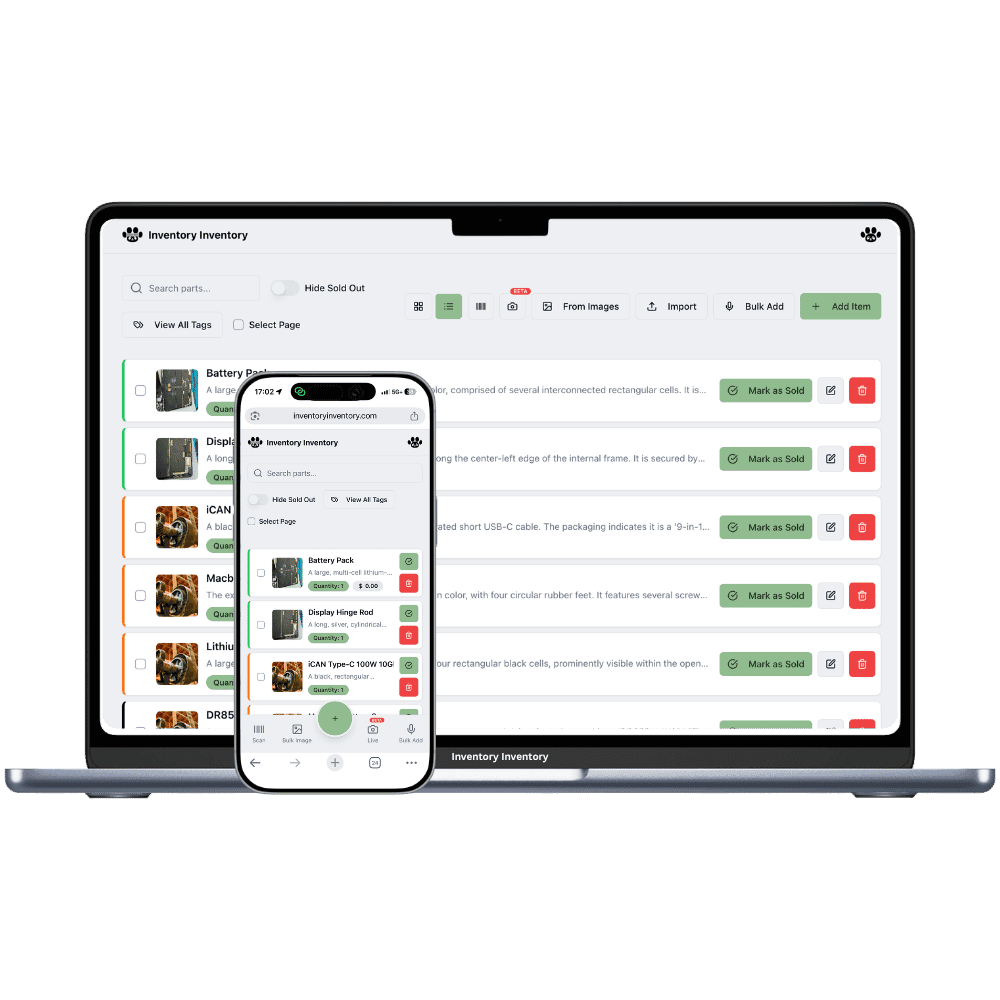
Most small businesses run fulfilment in three places: orders in a shop or a spreadsheet, stock in another tool, and the picking on paper. Inventory Inventory keeps all three in the inventory you already have. An order is a customer, a number and a list of lines. Confirming it reserves the stock it needs, so the inventory list shows what is still available to promise. If a line cannot be fully reserved, the order says so before anyone walks to a shelf.
Picking uses the warehouse map you drew. The pick list sorts lines by warehouse, then aisle, then floor, so a picker crosses the building once. Each line is ticked as it is taken and keeps the picker’s name and the time. Packing closes the box; Pack & label scans the carrier label and then the order’s own Code 128 label, which prints on any printer. The labelled box appears in the Ready Orders Room, a dispatch area behind a door in every 3D warehouse.
Hand to carrier is the moment the stock leaves your count. Lots go first-expired-first-out, each line records which lots left, and each line writes one entry in the activity log. An eight-station rail on every order shows how far it has got, and the Orders page filters by status, age, picker, source, item and tag. Orders are included on VIP, Luxury and Space.
Orders, stock, picking and the hand-over live in the same inventory, so nothing has to be re-keyed.
Reserved holds stock, shipped deducts it. The count on screen is the count on the shelf.
Lines follow your map in aisle order, on a computer or a phone browser.
Labelled boxes wait in a room in the 3D view until the carrier collects them.
Manage orders for the office, Pick orders for the floor. Pickers cannot confirm, ship or cancel.
Create and act on orders from the Orders page, the AI Assistant, the developer API or the AI connector.
Every step is a real event with a name and a time behind it. The order rail answers "where is it?" and the activity log answers "who did it?", for every order, without a second tool.
Add the customer and lines, confirm, and the stock is reserved. Shortfalls show line by line.
Tick each line off the sorted pick list, then pack the box.
Scan the carrier label and the order label, then mark the hand-over. Stock is deducted and the lots are recorded.
Software that takes a customer order through picking the items from the shelf, packing them into a box, labelling it and handing it to a carrier, while keeping the stock count in step. In Inventory Inventory this runs inside your inventory: confirming reserves stock, the pick list follows your warehouse map, and the hand-over deducts the stock.
No. Pick lists are generated from the same map you drew for your inventory, sorted by warehouse, aisle and floor. Pickers open them in a browser on a computer or a phone.
At hand-over, when the order is marked shipped. Confirming only reserves stock, so available stock drops while the on-hand count stays until the box actually leaves.
Yes. Manage orders covers creating, confirming, shipping, cancelling and customers. Pick orders covers pick lists, ticking lines and labelling boxes. A picker never needs the office permissions.
Orders, pick lists, labels and the Ready Orders Room are included on VIP, Luxury and Space. On other plans the Orders entry is visible but locked.
Not yet. You use the carrier’s label as you do today, scan it with the order code at Pack & label, and keep the carrier and tracking number on the order. Rate shopping and label purchase are planned.
Start free with 50 items — no credit card, no trial countdown. Import your spreadsheet and you have a working system in minutes.
New here? See how it works, layer by layer.