
One click to full screen
Open any product photo from the list or grid without opening the item.
Click any product photo in the web app to open it full screen, then click a detail to zoom in on it. Useful when the difference between two items is in the fine print.
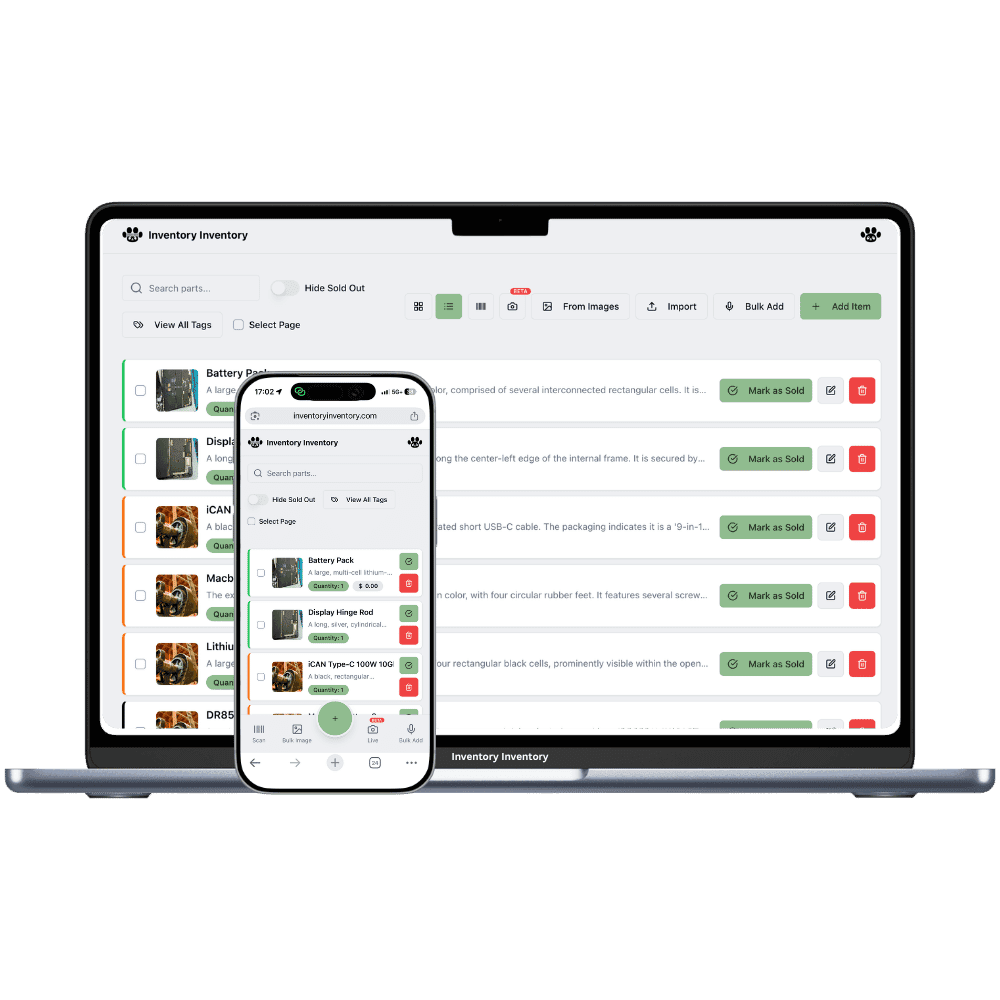
In the web app, click a product photo in the list or the grid and it opens full screen. Click any detail to zoom in on that spot, scroll to pan around it, and click again to zoom out. The arrow keys or the buttons at the sides step through the rest of that product’s photos.
The viewer shows the photo at its stored size, up to 1,600 px on the long side, rather than the small thumbnail in the list. Fine details such as stone settings, hallmarks, engraving or the markings on a small part stay visible.
The same viewer opens from the item editor. Each tile in the gallery shows a magnifier when you hover over it, and clicking the tile itself opens the viewer at that photo. The phone apps show a product’s main photo.
Open any product photo from the list or grid without opening the item.
Click a detail and the view zooms in on that exact spot.
Scroll to move around a zoomed photo, then click again to zoom out.
Arrow keys or the side buttons move between a product’s photos.
Photos display at up to 1,600 px on the long side, so small details stay sharp.
Ideal for jewellery, small parts and anything where the detail tells items apart.
When two rings or two connectors look the same in a thumbnail, the full-size photo settles it without fetching the item from the shelf.
In the web app list or grid, click the photo to open it full screen.
Click the spot you want to inspect and scroll to pan. Click again to zoom out.
Use the arrow keys or the side buttons to see the product’s other photos.
In the web app, click the product photo in the list or grid. It opens full screen. In the item editor, click a gallery tile or the magnifier that appears when you hover over it.
With the photo open full screen, click the detail you want to see. The view zooms in on that spot. Scroll to pan around, and click again to zoom out.
Open any of its photos full screen, then use the arrow keys or the buttons at the sides to step through the rest.
The viewer shows each photo at its stored size, up to 1,600 px on the long side, rather than the small list thumbnail. That is usually enough to read engraving, hallmarks and part markings.
The phone apps show a product’s main photo. The full-screen viewer with zoom and gallery stepping described here is part of the web app.
Start free with 50 items — no credit card, no trial countdown. Import your spreadsheet and you have a working system in minutes.
New here? See how it works, layer by layer.