
Know the cause quickly
A private browser window tells you in seconds whether a link is usable.
When an imported photo stays on the placeholder, the link in your file is almost always one our servers cannot reach. Here is how to check it and fix it.
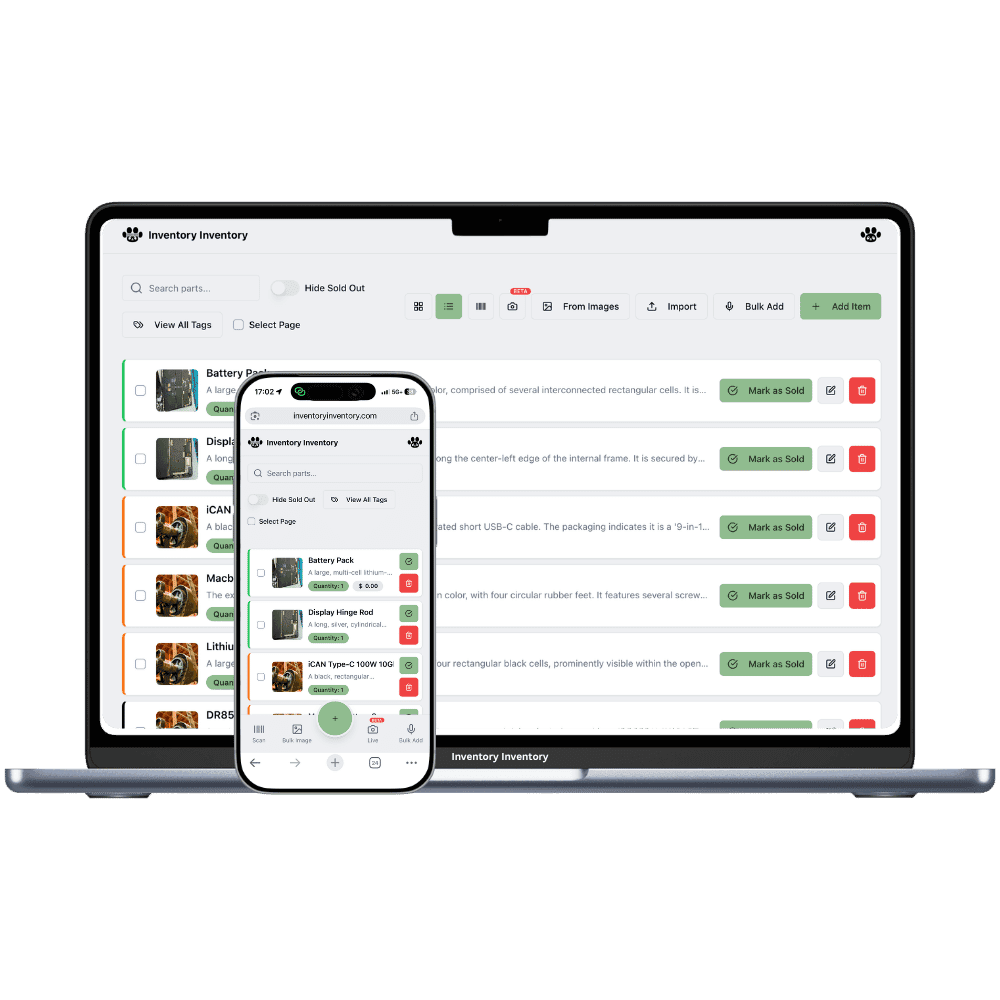
When you import a file with image links, our servers visit each link, download the picture and attach it to the product. Photos arrive over the minutes after the import. Until then, and whenever a fetch fails, the product shows the placeholder.
A photo never arrives when the link is private, has expired, sits behind a login, or points to a web page rather than an image file. It also fails when the image is on a host that does not answer requests from outside its own region. Hosts inside mainland China are the most common case.
The fix is the same in every case. Host the images somewhere publicly reachable from North America, update the links in your file, and import it again with "Add photos to matching items" ticked.
A private browser window tells you in seconds whether a link is usable.
Matching rows are held back, so a second import adds photos without duplicating products.
Products that already have a photo are left alone.
Re-importing for photos does not touch quantities, prices or fields.
Your own connection or VPN plays no part in whether a photo arrives.
A bad link never stops the product itself from importing.
Open the link in a private browser window. If you see the image itself, our servers can usually fetch it. If you see a login, a web page or an error, they cannot.
Copy a link from your file and open it in a private browser window. It must show the image itself.
If it fails, host the images somewhere public and reachable from North America, and update the links.
Import the file again with "Add photos to matching items" ticked, then give it a few minutes.
The most common reason is that our servers cannot reach the link. Links that are private, expired, behind a login, or point to a web page instead of an image file never arrive. Images on hosts that do not answer requests from outside their region also fail.
Usually a few minutes. Our servers fetch each link after the import is saved, so photos arrive gradually rather than all at once.
Open it in a private or incognito browser window, where you are not signed in to anything. If the image itself appears, the link is public. If you see a login screen, a product web page or an error, it is not.
Many hosts inside mainland China do not answer requests from outside the region, so our servers cannot download from them. Host the images somewhere publicly reachable from North America and import again.
Update the image links in your file so they point to publicly reachable image files, then import it again with "Add photos to matching items" ticked. Matching rows are held back, so nothing is duplicated, and only products without a photo receive one.
Start free with 50 items — no credit card, no trial countdown. Import your spreadsheet and you have a working system in minutes.
New here? See how it works, layer by layer.