
Same number, two symbols
Pick Barcode, QR code or Both in the print dialog. The choice is remembered on that computer.
Print a QR code beside the barcode, or instead of it, with your logo in the middle. The QR holds the same number as the bars, so it scans in the app and on any phone, on paper sheets or label rolls.
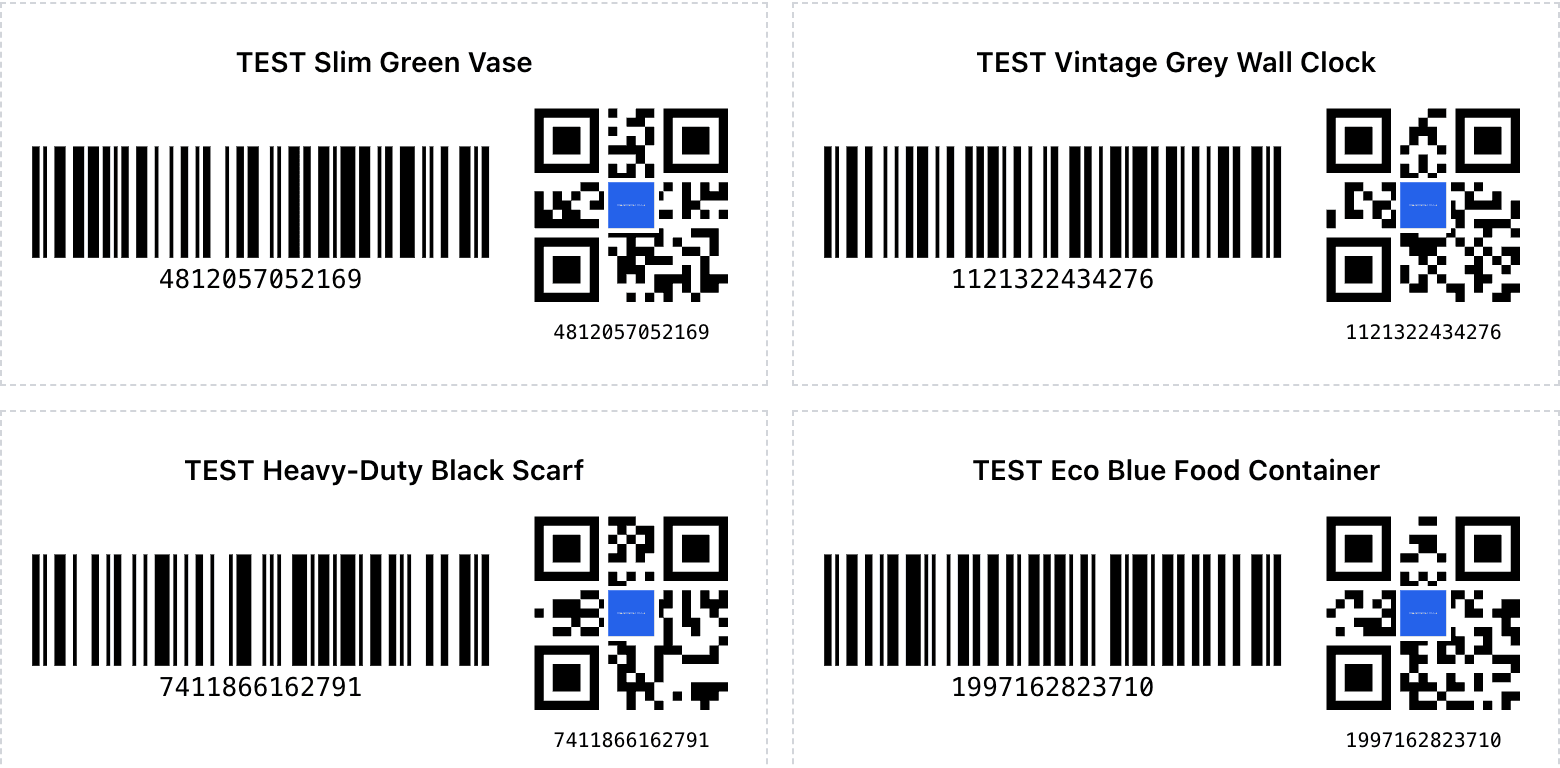
A QR code is a different picture of the same number. Every item here has one barcode string, the manufacturer's UPC or EAN or a number we generate, and a QR label encodes exactly that string as plain text. Scan it with the web scanner, the phone apps or a hardware gun that reads 2D codes and you land on the same item, the same quantity and the same shelf as a barcode scan.
What changes is what the label can do. A QR code stays readable when it is small, which suits narrow label rolls and tiny products where a long barcode would not fit. It tolerates smudges and scuffs, which is why a logo can sit in the middle without hurting the scan. And a customer or a new hire can read it with any phone camera, no training needed. Nothing changes on the item, in your spreadsheet imports, in Square or in the API.
Pick Barcode, QR code or Both in the print dialog. The choice is remembered on that computer.
Choose a small logo from your computer and it is drawn into each QR code. It is printed into the PDF and never leaves your machine.
A QR code holds up at sizes where a barcode gets too long or too thin to read.
Letter sheets of twelve, or one label per page at 4 by 2, 2¼ by 1¼ or 4 by 6 inches for Dymo, Zebra, Brother and similar printers.
The iPhone and Android apps scan QR codes today, so a QR label works the moment it is printed.
Select as many items as you like. The preview stays quick, and a progress bar follows the PDF page by page with a Cancel button.
It is the barcode number in a shape that reads better small, survives wear, and carries your logo. Switch symbol per print, keep the same data.
One item from its editor, or any selection from the inventory list, then Print Barcodes.
Letter sheet or a label roll size; Barcode, QR code or Both; add a logo if you like.
Open it, choose your printer in the print dialog at 100% scale, and print one label first to check the roll.
The item's barcode number as plain text, nothing else. Not a web link and not a tracking address, so any scanner that reads QR codes gets the same number a barcode scanner would, and it keeps working if the item is renamed or moved.
No. The iPhone and Android apps have read QR codes since they launched, and the web scanner does too. A QR label scans into the same item lookup as the bars.
Yes. In the print dialog, choose QR code or Both and pick a small PNG, JPEG, WebP or SVG from your computer. It is drawn into the centre of each QR code in the PDF and is never uploaded to us. The codes are generated with the highest error-correction level and the logo is kept small, so they still scan reliably; we measured that they read with a far larger patch covered than the logo takes.
Keep barcodes where they already work, especially on goods that arrive with manufacturer codes and at tills. Add QR codes where labels are small, where phones are the scanner, or where you want branding on the label. Both is the safe choice for mixed hardware: a laser gun reads the bars, a phone reads the square.
Choose a label roll size in the print dialog and the PDF comes out as one label per page at that size, which is what Dymo, Zebra, Brother and similar printers expect. The printer itself is chosen in your computer's print dialog; keep the scale at 100 percent and print one label first. If your roll is a size we do not list, tell us.
Start free with 50 items — no credit card, no trial countdown. Import your spreadsheet and you have a working system in minutes.
New here? See how it works, layer by layer.